
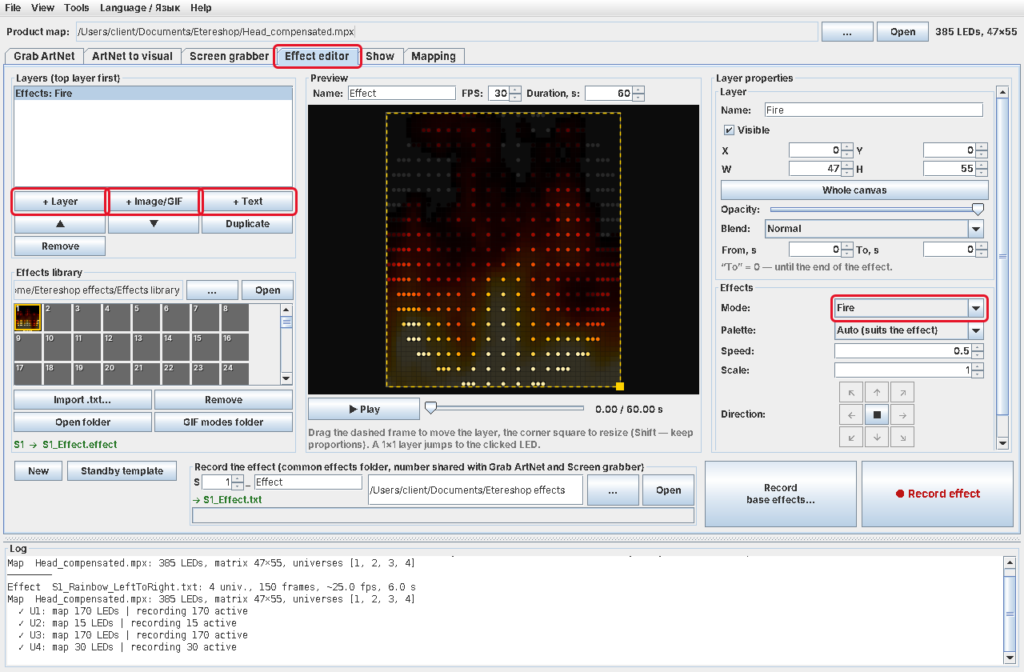
We keep working on the free Etereshop Effects Recorder, the program our customers use to make and change effects for EtereShop LED costumes, wings and helmets. The goal is simple: make effect programming easier, so you don’t need a technician or special software to get new effects onto your product.
Here is what the current version can do.
About 95 standard effects in one click
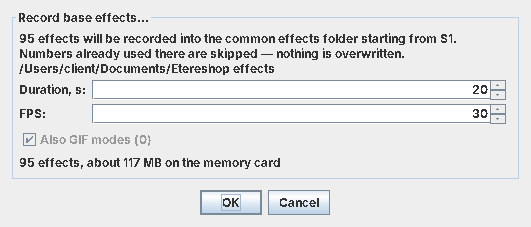
The Record base effects… button in the Effect editor records a full set of about 95 standard effects for your product in one go: colours, fire, rainbows, rings, plasma, twinkle and more.
You can get many more. Put your own GIFs into the GIF modes folder, and the program records one extra effect for every GIF. For example, 300 GIFs downloaded from a site like giphy.com give you 300 + 95 effects in the same run. Before recording, the dialog shows how much space the set will take on the memory card.
Two things to keep in mind: check that everything fits on the card, and don’t set an effect shorter than 15 seconds. When effects switch too often, the controller reads the card all the time and the card wears out much faster.
Windows, Mac or anything else with Java
The old tools only ran on Windows. Effects Recorder now comes in three versions:
- Windows: Java is already inside, just start the .exe.
- macOS: install Java from adoptium.net and start the .command file.
- Any system with Java: run the .jar file.
It is a portable program: unzip the archive and it is ready to use, nothing to install.
No ArtNet software needed
Until now, recording your own effects usually meant working in Madrix or a similar ArtNet program. Most customers don’t need that any more:
- Screen grabber turns any GIF or video on your screen into an effect. Open the video, put the overlay window with your product’s LED map over it and record.
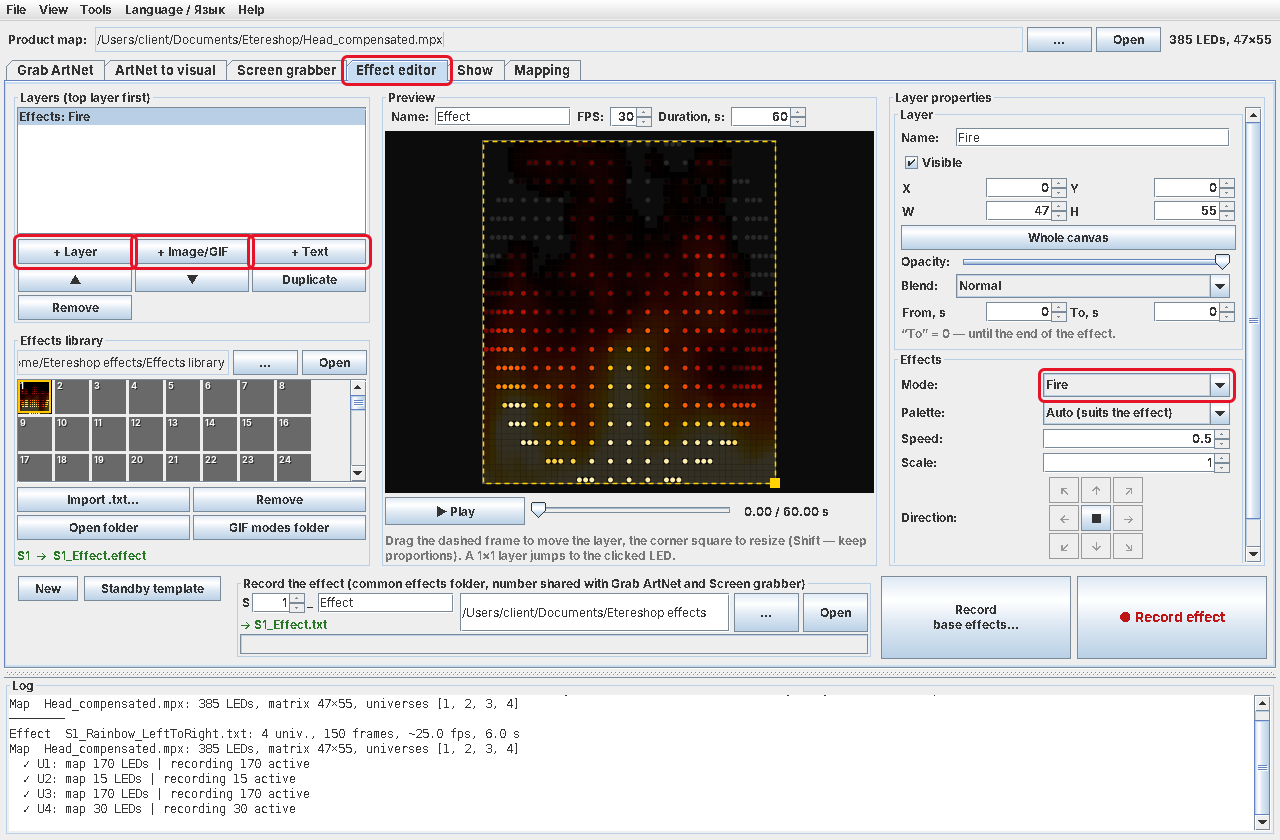
- Effect editor works like a “Madrix lite”: you build an effect from layers (effect modes, pictures and GIFs, text) and animate pictures with zoom, movement and copies.
- Show puts several effects in sequence to music. The program finds the beats, you add transitions on the timeline, and the whole show is saved as one effect file.
- ArtNet to visual shows every recorded effect on the map of your product, so you can check how it will look before copying it to the memory card.
If you already use Madrix, Resolume or Jinx!, the Grab ArtNet tab still records from them, and you no longer have to type IP addresses: the program finds them in the network by itself.
How to start
- Download the archive for your system from the latest release on GitHub and unzip it.
- Start the program and load the map file of your product in the Product map field at the top. We send this file together with the product (.msx, .mpx or Patch .html).
- Record effects, check them in ArtNet to visual and copy them to the memory card of the controller.
The full guide with screenshots is on the Effects Recorder page on GitHub, and there is a short video guide. Manuals in 7 languages are inside the archive.
From version 4.14 the program checks for updates by itself once a day and installs a new version in one click.
Still in beta
Effects Recorder is in beta, so glitches and lags are possible. We add new functions based on what customers ask for. If something doesn’t work or you need a function, write to sales@etereshop.com.
Our older guides for programming effects with Madrix and with the old Screen Grabber are no longer supported. If you are setting up effects now, please use Effects Recorder.